
ParentSquare
General Information
Apple Store
Google Play Store
We’re excited to share that we’ve adopted a new communication platform called ParentSquare to help us keep you better informed and more connected with your school community.
With ParentSquare, you’ll receive all school and classroom messages in one place and translated into your preferred language—whether by email, text, app, or web. You’ll also be able to:
- Stay up to date on news and events
- Send and receive messages with teachers and staff
- Fill out forms and permission slips
- Sign up for conferences and volunteer opportunities
- View calendar items and photos from your school
All school, grade-level, and classroom communications will now come through ParentSquare.
To get the most out of ParentSquare, we encourage you to download the free mobile app, available for iOS and Android. You can also access ParentSquare from your web browser.
Registration Information
🚀 How to Get Started (5 Easy Steps)
- Access: Download the free ParentSquare app (iOS/Android) or visit the ParentSquare website.
- Register: Enter the email or phone number you provided in FinalForms.
- Verify: Enter the code sent to your phone or email.
- Connect: Confirm your child(ren)’s names linked to your account.
- Finish: Click "Yes, this is me" to complete setup!
🛠️ Quick Troubleshooting
- Incorrect Info? Update your contact details directly in FinalForms so ParentSquare can sync the correct info.
- Missing a Student? Reach out to us directly, and we will gladly help get your account connected.
🌟 Key Highlights
- Powered by FinalForms: ParentSquare contact information comes from FinalForms. If your phone number or email address ever changes, FinalForms is the primary place to update it.
- Two-Way Communication: Registering your account allows you to message directly back and forth with your child’s teachers.
- Custom Notifications: You can choose whether you prefer emails, text messages, or app alerts. Check out this quick [1-Minute Video on Notification Preferences] to set yours up!
Setting Your Notifications (Text, Email, App)
Default
By default, the ParentSquare notification priorities are: 1) App (if you registered your account); 2) Email; 3) Text message. You can change your preferred notifications by registering your account and changing the settings using the info below.
Update your Notification Settings (using web browser)
- From Home, click your name and select Manage Account.
- Click Notification Settings.
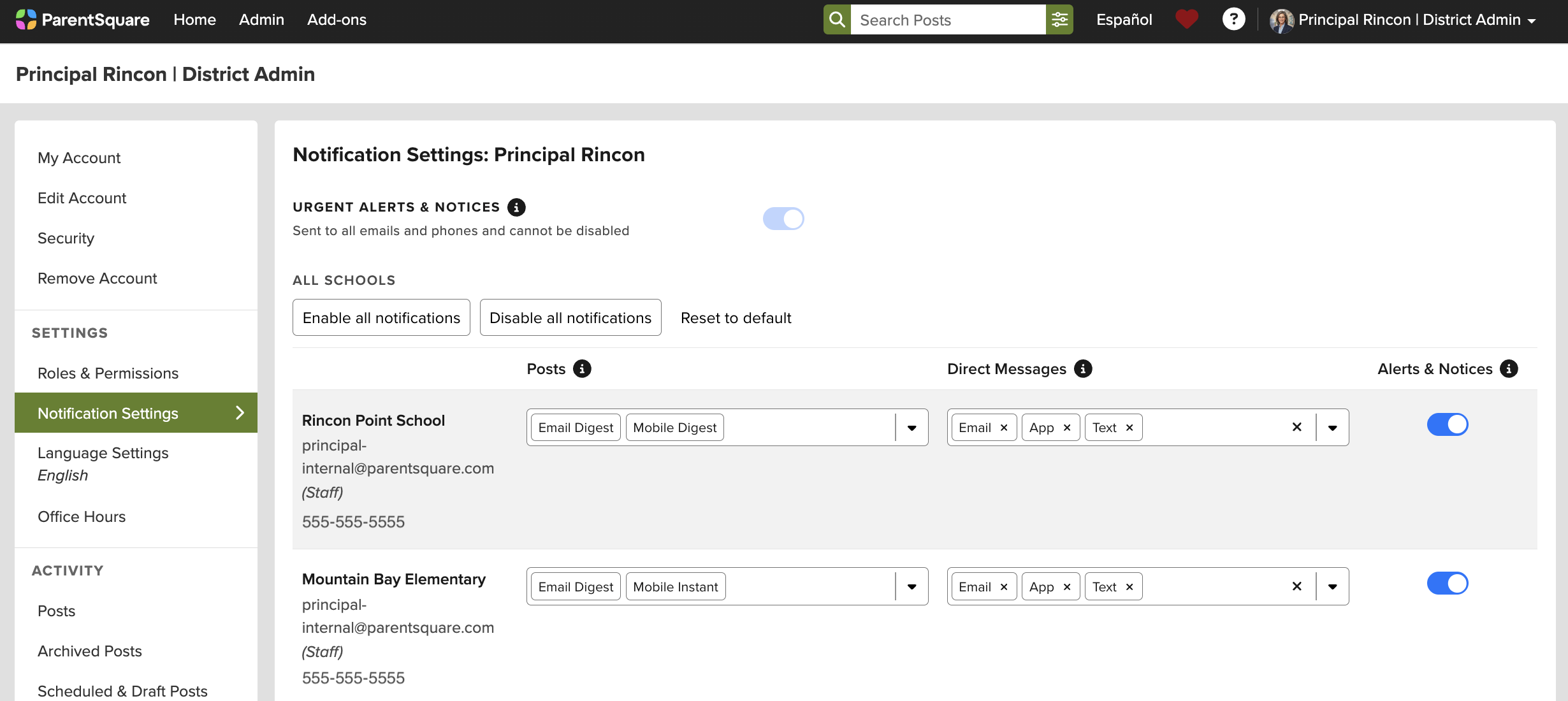
- Choose your preferred notification settings:
- Urgent Alerts & Notices:
- On: Notifications for Attendance notices, Urgent Alerts, and Auto Notices marked as critical are enabled automatically and cannot be disabled.
- Posts:
- Instant: Notifications are delivered as soon as possible after a post is sent. Note: if both app and text notifications are set to instant, the post will be sent via Smart Notification Delivery.
- Digest: Notifications are delivered in the evening in the time zone of the institute.
- Off: If the user selects Off, no notifications will be delivered to this email/phone/app for the school or district. Note: The Off setting is overridden for urgent alerts.
- Direct Messages:
- Email: Notifications are delivered instantly via email.
- Text: Notifications are delivered instantly via text.
- App: Notifications are delivered instantly via push.
- Alerts & Notices:
- On: You will receive all Smart Alerts and Auto Notices from this school or district.
- Off: You will only receive Urgent Alerts and Critical Auto Notices.
- Urgent Alerts & Notices:
- If you have multiple emails or phones listed on your account, set the order of your preferred contacts to receive notifications. Notifications will only be sent to one email and one phone on your account.
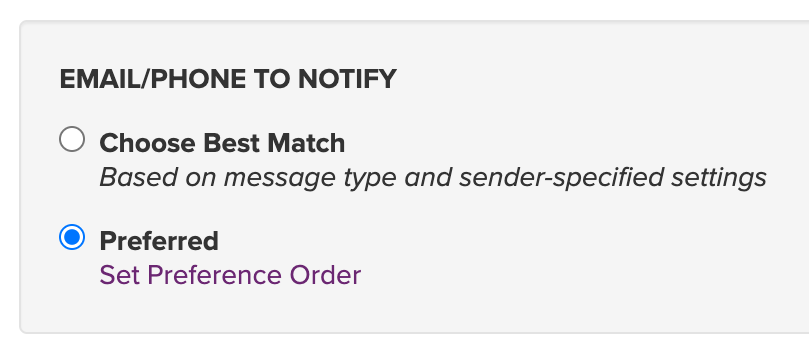
Note: the “Choose Best Match” setting will select the most relevant email and phone to send the notification to. Notifications related to the student/parent will go to the personal email/phone, while notifications intended for staff only will always go to the staff email/phone. Posts sent to both staff and parents will default to the parent email/phone. If "Digest" is selected and there is at least one notification in the Digest that includes parents, the digest will be sent to the parent email.
Update your Notification Setting (using mobile app)
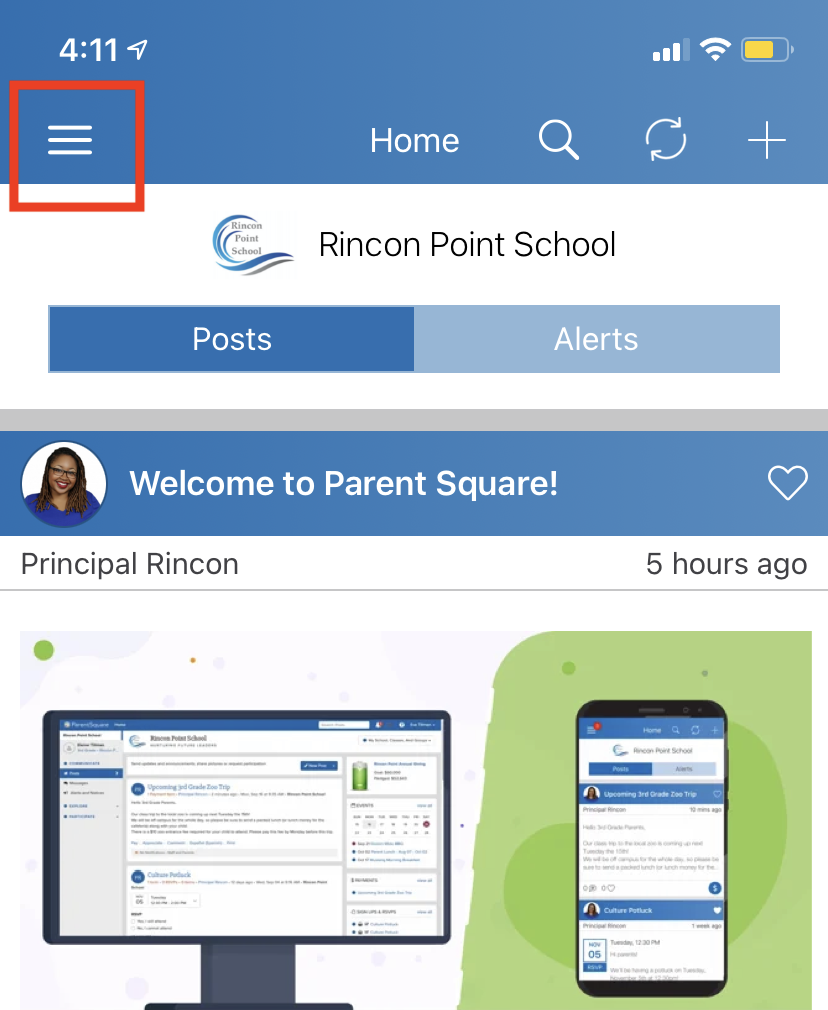
- From home screen tap the triple bar menu at top left.
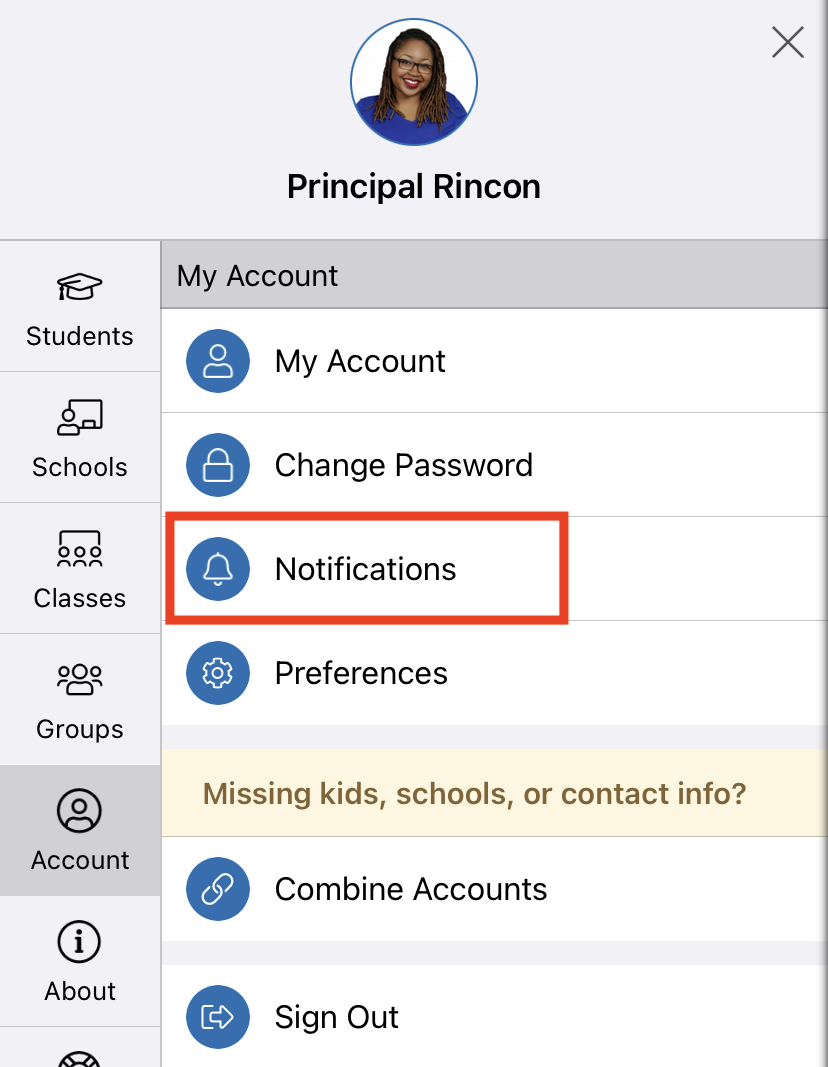
- Select Account and then Notifications.
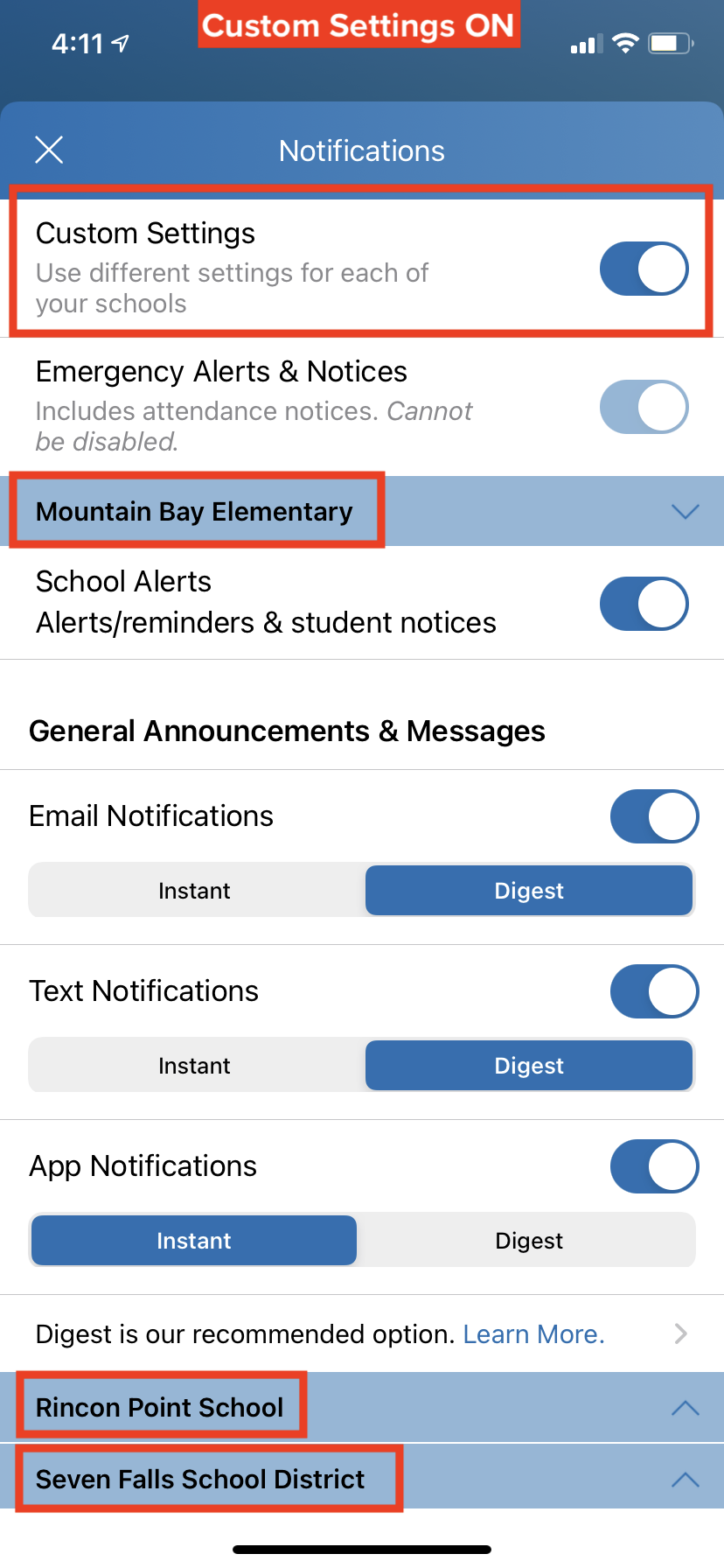
- Select how you want to be notified at each school.
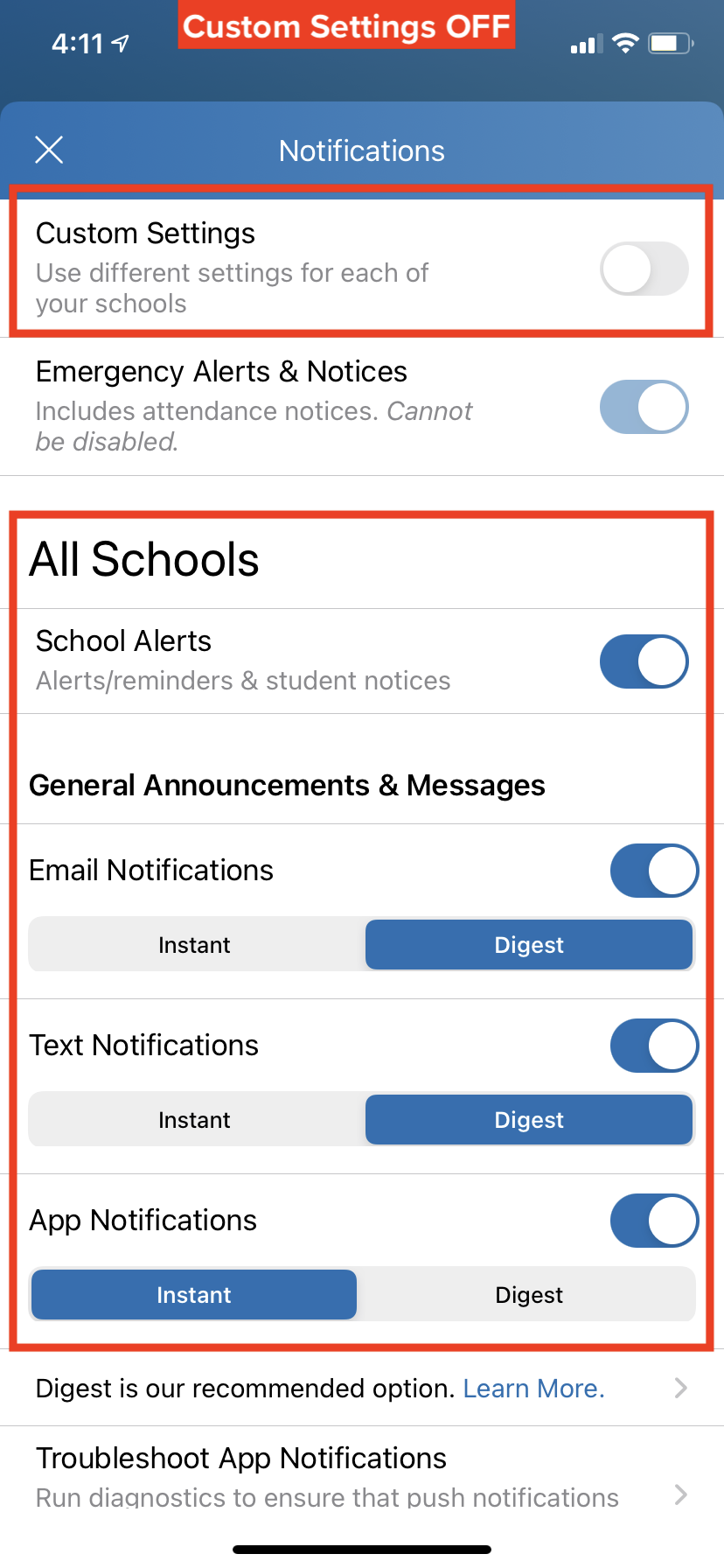
- Turn OFF Custom Settings to use the same notification settings for all schools.
- Turn ON Custom Settings to set different notifications at each school.
- Toggle on or off to receive Email, Text and/or App Notifications.
- Select Instant or Digest for each mode. Note: Digest is recommended – you will receive one notification per day, for all posts, in the evening.
Note: In order to receive app notifications on your phone, be sure they are enabled in your phone settings.